 017 1223 6015






 017 1223


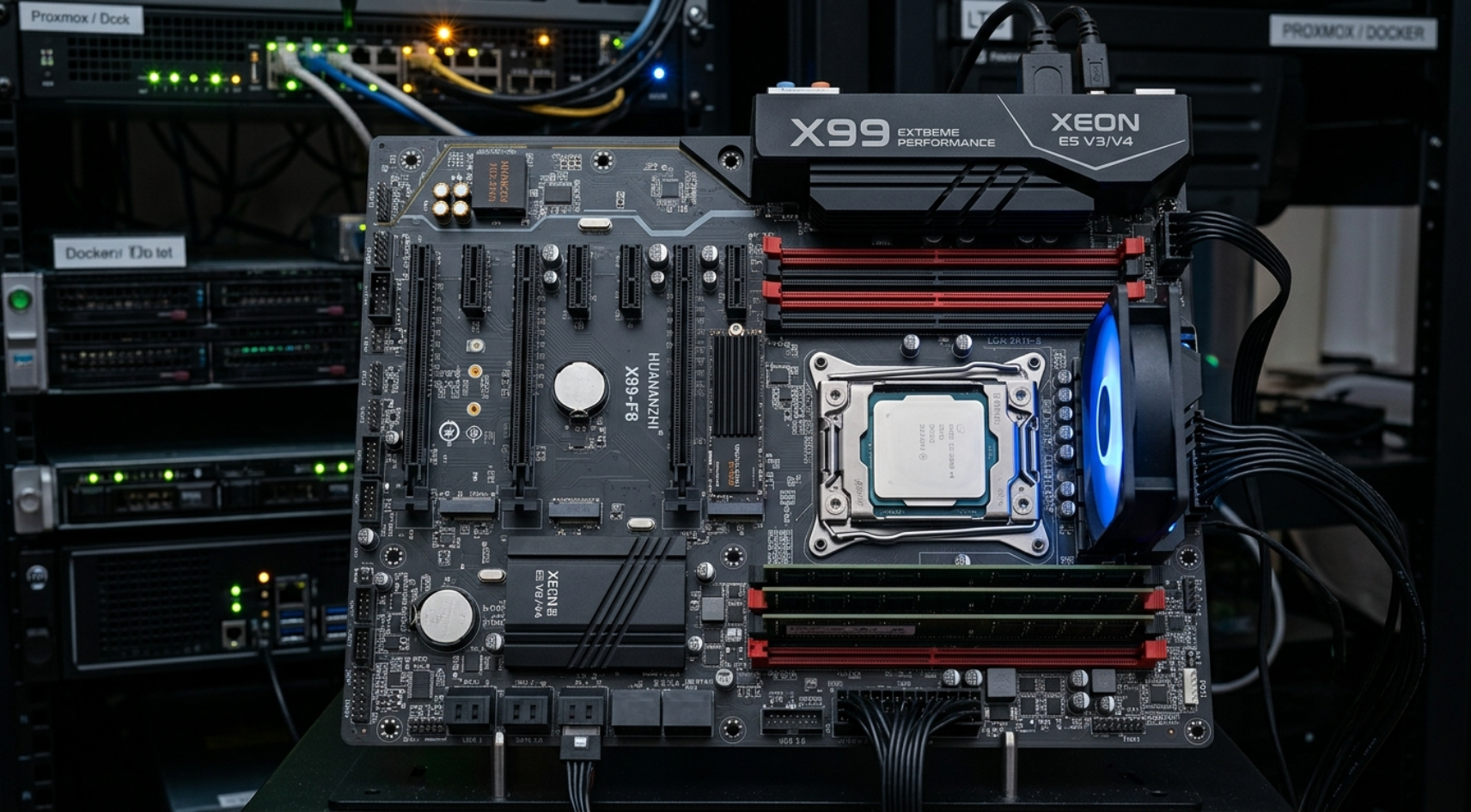
If you’re looking for an X99 motherboard that delivers serious multi-core performance without breaking the bank, you’ve landed in the right place. At Johan Computer, we’ve worked hands-on with X99 builds for homelab servers, budget workstations, and virtualization rigs — and in this guide, we break down everything you need to know before buying.
What Is an X99 Motherboard?
The X99 is a chipset developed by Intel, codenamed “Wellsburg,” and launched in Q4 2014. It was designed for the High-End Desktop (HEDT) and entry-server market. Its key defining features include:
- LGA 2011-3 socket — compatible with Intel Xeon E5 v3/v4 and Core i7 Extreme processors
- Native quad-channel DDR4 memory support — up to 128 GB on most boards
- Up to 40 PCIe 3.0 lanes directly from the CPU
- Up to 22 cores per CPU (or 44 cores with dual-socket variants)
This platform sits in a unique sweet spot between consumer-grade desktops and full enterprise server hardware — making it extremely popular for budget builders who need high core counts without paying modern platform prices.
Why Is X99 Still Relevant in 2026?
You might wonder: why choose a chipset from 2014? The answer is simple — cost-to-core-count ratio.
A used Intel Xeon E5-2699 v4 (22 cores / 44 threads) can be found for under $120. That’s less than half the price of a modern mid-range consumer CPU, yet it offers comparable or better multi-threaded throughput for workloads like:
- Virtual machine hosting (Proxmox, VMware ESXi)
- Video encoding and rendering
- Docker/container environments
- NAS and home lab servers
- Scientific computing and local AI inference
The X99 platform has matured, prices have collapsed, and the ecosystem is well-documented — all reasons why it continues to attract builders in 2026.
X99 Server Motherboard: Key Specs to Look For
When shopping for an X99 server motherboard, focus on these features:
1. Socket Type: LGA 2011-3
All X99 motherboards use the LGA 2011-v3 socket. Make sure your CPU matches — Xeon E5 v3 and v4 are the most common choices. Note that v3 and v4 CPUs are not always cross-compatible depending on board BIOS version.
2. Memory Slots & Capacity
Look for boards with 8 DIMM slots if you plan to run more than 64 GB of RAM. Most X99 boards support DDR4, and quad-channel operation requires all four channels to be populated with identical modules. Some budget boards only offer 4 DIMM slots — fine for 32–64 GB builds.
3. ECC Memory Support
If data integrity matters (which it should in server environments), confirm whether the board supports ECC (Error-Correcting Code) memory. Some budget boards claim ECC support but only work with non-ECC RAM in practice. Always verify with user reviews before buying.
4. PCIe Slots
X99 motherboards provide multiple PCIe 3.0 x16 slots — ideal for GPUs, NVMe adapter cards, and 10GbE NICs. Premium boards like the ASRock X99 WS-E feature up to 7 PCIe 3.0 x16 slots with PLX bridge support for multi-GPU configurations.
5. M.2 / NVMe Support
Not all M.2 slots on X99 boards support NVMe — some only accept SATA-based M.2 drives. Check the board manual or community reviews to confirm NVMe boot capability before purchasing.
6. Form Factor
X99 boards come in several sizes:
- ATX — most common, fits standard full-tower cases
- Micro-ATX (M-ATX) — compact but may have fewer slots
- E-ATX — required for dual-CPU and multi-GPU server builds
Be aware: dual-CPU X99 boards are large and often require a proper server chassis or E-ATX case for proper fitment and airflow.
7. VRM Cooling
Budget X99 boards from no-name brands often lack adequate VRM heatsinks. This becomes a problem under sustained 100% CPU loads. If running 24/7 server workloads, prioritize boards with quality VRM cooling or ensure your case has strong airflow directed at the VRM area.
Top X99 Server Motherboard Options
Budget Tier (Under $50)
- HUANANZHI X99 4MF — Supports DDR4, includes M.2 slot, works with most E5 v3/v4 CPUs out of the box. Great for homelab starters.
- QIYIDA X99-D4 — Solid entry-level choice with quad-channel DDR4 and NVMe support on newer BIOS versions.
- MACHINIST X99 V9S — M-ATX form factor, supports up to 128 GB DDR4, WiFi M.2 slot, PCIe 3.0, SATA 3.0, and USB 3.0.
Mid Tier ($50–$110)
- JGINYUE X99-9D4 — 8 DIMM slots for up to 256 GB RAM, dual Gigabit LAN, dual M.2, and good community support.
- SHANGZHAOYUAN X99 B9 — Reliable M-ATX board with PCIe 3.0, NVMe M.2, and Gigabit LAN.
Premium / Workstation Tier
- ASRock X99 WS — Features 5 PCIe 3.0 x16 slots, Intel Dual Gigabit LAN (I217LM + I210AT), 10 SATA3 ports, Ultra M.2 (PCIe Gen3 x4), server-grade LAN chip, and support for up to 128 GB DDR4 with ECC/RDIMM. Built for 24/7 operation with premium alloy components.
- ASRock X99 WS-E — Expands to 7 PCIe 3.0 x16 slots (via PLX 8747 bridge), 12 SATA3 ports, 4-way SLI/CrossFireX support, and dual Intel I210AT server-grade LAN. Ideal for multi-GPU rendering or virtualization with GPU passthrough.
X99 Dual CPU Motherboard: Is It Worth It?
Dual-CPU X99 boards (like the HUANANZHI X99 F8D or JGINYUE X99-9D4 in dual mode) can deliver up to 44 physical cores using two Xeon E5-2699 v4 processors. This is exceptional for:
- Large-scale virtualization (running 20+ VMs)
- Memory-bound HPC workloads requiring eight-channel bandwidth
- Multi-node simulation environments
However, dual-CPU builds come with real tradeoffs:
- Higher idle power draw (~35W vs ~15W for single CPU)
- Rare or nonexistent BIOS updates
- Limited compatibility with Windows 10/11 installers
- You’ll need an E-ATX case — standard ATX cases won’t fit
Verdict: Only go dual-CPU if you specifically need more than 28 cores. For most homelab and workstation use cases, a single high-core-count Xeon (E5-2680 v4 or E5-2690 v4) delivers excellent performance in a simpler, more reliable package.
X99 and Windows 11 Compatibility
This is a common pain point. Windows 11 can run on X99 hardware, but it requires TPM 2.0 and Secure Boot. Here’s how to check and enable it:
- Enter BIOS (usually Del or F2 on boot)
- Go to Advanced > PCH Configuration > Intel Trusted Execution Technology — enable it
- Go to Security > TPM Device Selection — choose Firmware TPM
- Save and reboot
- In Windows, run
tpm.msc— verify Status reads “The TPM is ready for use” and version shows “2.0”
Note: Many budget X99 boards either lack a TPM header or ship with non-functional TPM modules. Verify this before purchasing if Windows 11 compliance is a requirement.
Things to Watch Out For When Buying a Cheap X99 Board
Based on community feedback from r/homelab, XDA-Developers, and verified buyer reviews:
Common Complaints:
- BIOS doesn’t save fan curves after reboot
- USB 3.0 ports drop devices after extended uptime
- TPM modules arriving non-functional
- ECC RAM refusing to POST despite claimed compatibility
- No online documentation for unbranded boards
Tips to Avoid Problems:
- Always verify CPU compatibility specifically — “supports E5 v3/v4” doesn’t guarantee all SKUs work
- Pre-validate RAM compatibility; users who do this report 95%+ success rates
- Apply Intel’s latest E5 v4 microcode patch before enabling virtualization features
- Only update BIOS if fixing a critical issue — failed flashes can brick the board
- Clean VRM heatsinks every 6 months for 24/7 operation
X99 Motherboard Price Guide (2026)
| Tier | Price Range | Best For |
|---|---|---|
| Entry | Under $40 | NAS, single-purpose server, proof-of-concept lab |
| Mid | $55–$85 | Homelab VM host, rendering node, stable quad-channel builds |
| Premium | $150–$450 | Workstation, multi-GPU, enterprise-grade stability |
Value peaks in the $40–$110 range. Below $40, expect missing features like NVMe support or PCIe bifurcation. Above $150, you’re paying for brand trust, longer warranty, and better documentation — not raw performance gains.
Final Verdict: Should You Buy an X99 Server Motherboard?
Yes — if your use case matches the platform.
The X99 is the lowest-cost path to high-core-count computing in 2026. It’s not cutting-edge, it won’t win on energy efficiency, and it has no upgrade path beyond v4 Xeons. But for virtualization, homelab builds, video encoding, and budget workstations, it delivers disproportionate value.
Why You Buy X99 if?
- You need 16+ threads on a tight budget
- You’re building a Proxmox/TrueNAS/Docker host
- You already own compatible RAM or CPUs
- You want maximum cores-per-dollar
Is Look elsewhere?
- Energy efficiency is a priority
- You need Windows 11 compliance out of the box
- You want long-term vendor support and BIOS updates
- Your workload is gaming-first (modern Ryzen/Intel platforms are better here)
Frequently Asked Questions
Q: What CPU goes in an X99 motherboard? X99 uses the LGA 2011-3 socket and supports Intel Xeon E5-1600/2600 v3/v4 series and Core i7 Extreme (Haswell-E, Broadwell-E) processors.
Q: Does X99 support DDR4? Yes. Most modern X99 boards support DDR4 in quad-channel configuration. Some older or budget boards may use DDR3 or offer hybrid DDR3/DDR4 slots.
Q: How many PCIe lanes does X99 have? The X99 platform provides up to 40 PCIe 3.0 lanes directly from the CPU — far more than mainstream consumer chipsets.
Q: Is X99 good for a server? Absolutely. It’s one of the most cost-effective platforms for building a home server or lab node in 2026, thanks to cheap Xeon CPUs, large RAM support, and multiple PCIe slots.
Q: What is the best X99 motherboard for a home server? For most builders, the JGINYUE X99-9D4 (mid tier) or HUANANZHI X99 4MF (budget tier) offer the best balance of features, stability, and community support.